Let’s say we’re building an AI agent for Telegram. A user asks it to compare two headphone models for work calls. Before it can answer, the agent needs to find reviews and check what they say about microphone quality. A typing indicator doesn’t tell the user what the agent is doing.
Telegram gives us a native progress UI for this: a temporary message draft with a thinking block, optional animated action icons, and a Stop button. We can show the agent’s activity as it happens, followed by its answer:
Let’s connect each part of that interaction to the Telegram API. We’ll start with a status, update it as tools run, and finish with a saved reply. Then we’ll make the Stop button cancel the task. The examples use HTTP and application pseudocode, so we can apply them in any bot framework.
Meet the thinking block
Our example starts with this request:
Compare Sony WH-1000XM5 and Bose QuietComfort Ultra Headphones for work calls. Search the web and read a source for each. Reply in English, in at most 150 words, with a short comparison and source links.
There are two kinds of information to display: the work underway and the comparison we’re waiting for. Telegram’s thinking block gives the work its own area within a temporary draft. The answer can appear alongside it as the bot generates text. Once the task finishes, we send a permanent reply. Telegram describes this lifecycle in its streaming-replies guide.
Despite the name, we don’t need to put model reasoning in the thinking block. We supply its contents. For our headphones request, “Searching for microphone tests” tells us what the bot is doing without exposing raw tool arguments or private reasoning.
Create the first preview
To get started, we need a bot token and a private chat with the bot. We’ll call sendRichMessageDraft, placing a <tg-thinking> element inside rich_message.html.
This request shows one status before the first search begins. Use your bot token and the private chat’s ID; 42 is our example nonzero draft ID:
POST https://api.telegram.org/bot<TOKEN>/sendRichMessageDraft
Content-Type: application/json

{
  "chat_id": 123456789,
  "draft_id": 42,
  "can_stop": true,
  "rich_message": {
    "html": "<tg-thinking>Searching for headphone microphone tests...</tg-thinking>"
  }
}
With that in place, we have our first progress preview. We also enable the native Stop button through can_stop; we’ll handle its event below.
Before connecting the agent, repeat the request with the same draft_id and change the status to “Reading a Sony WH-1000XM5 review…”. The text should change within the existing preview.
Use a fresh nonzero draft ID for each new user request, and reuse it for every update to that request’s preview. Drafts expire after 30 seconds, so a long operation needs refreshes even if its status hasn’t changed. See the rich draft API for the lifecycle details.
Show what each tool is doing
A single status works for a short operation. Our comparison takes more work: the bot searches for sources about each pair of headphones, then reads a review of each. Let’s give those operations readable labels and update their outcomes as they finish.
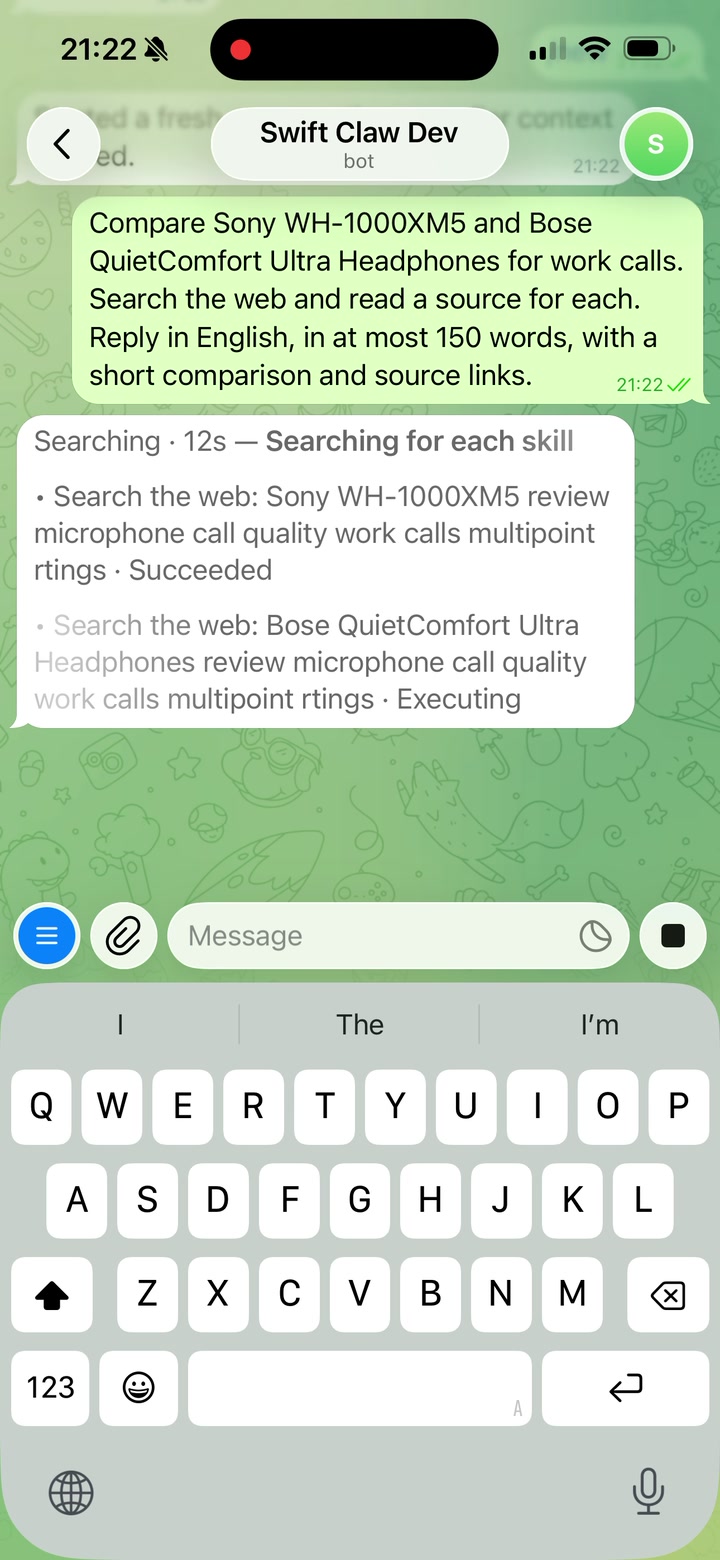
As tools finish, update each step with its result, including failures. Our application supplies the labels, elapsed time, and outcomes; Telegram renders the content we send.
Let’s connect tool events to the draft. Each refresh renders the current steps inside <tg-thinking> and sends them through sendRichMessageDraft with the same draft_id. This is application pseudocode, not Telegram SDK methods:
on tool started:
    add a step with a readable label and target
    refresh the draft

on tool finished:
    update that step with its outcome
    refresh the draft
For this request, a label such as “Searching for Bose microphone tests” helps us follow the research. A short result can say whether the search succeeded. We can reserve the findings and source links for the answer instead of putting search output into the progress area.
As we connect more events, group rapid changes into a single update. Escape dynamic text before inserting it into HTML, including search queries, page titles, and tool descriptions.
Send the final reply
A draft is a temporary preview, not a saved message. When the full answer is ready, stop refreshing the draft and send the reply with sendRichMessage, leaving out the draft-only thinking block. This gives the user a reply that stays in the conversation, as described in Telegram’s streaming guide.
Use the same chat ID and put the completed answer in rich_message.html. Replace the placeholder below with the answer, escaping any dynamic text before inserting it into HTML:
POST https://api.telegram.org/bot<TOKEN>/sendRichMessage
Content-Type: application/json

{
  "chat_id": 123456789,
  "rich_message": {
    "html": "<p>Your completed comparison goes here.</p>"
  }
}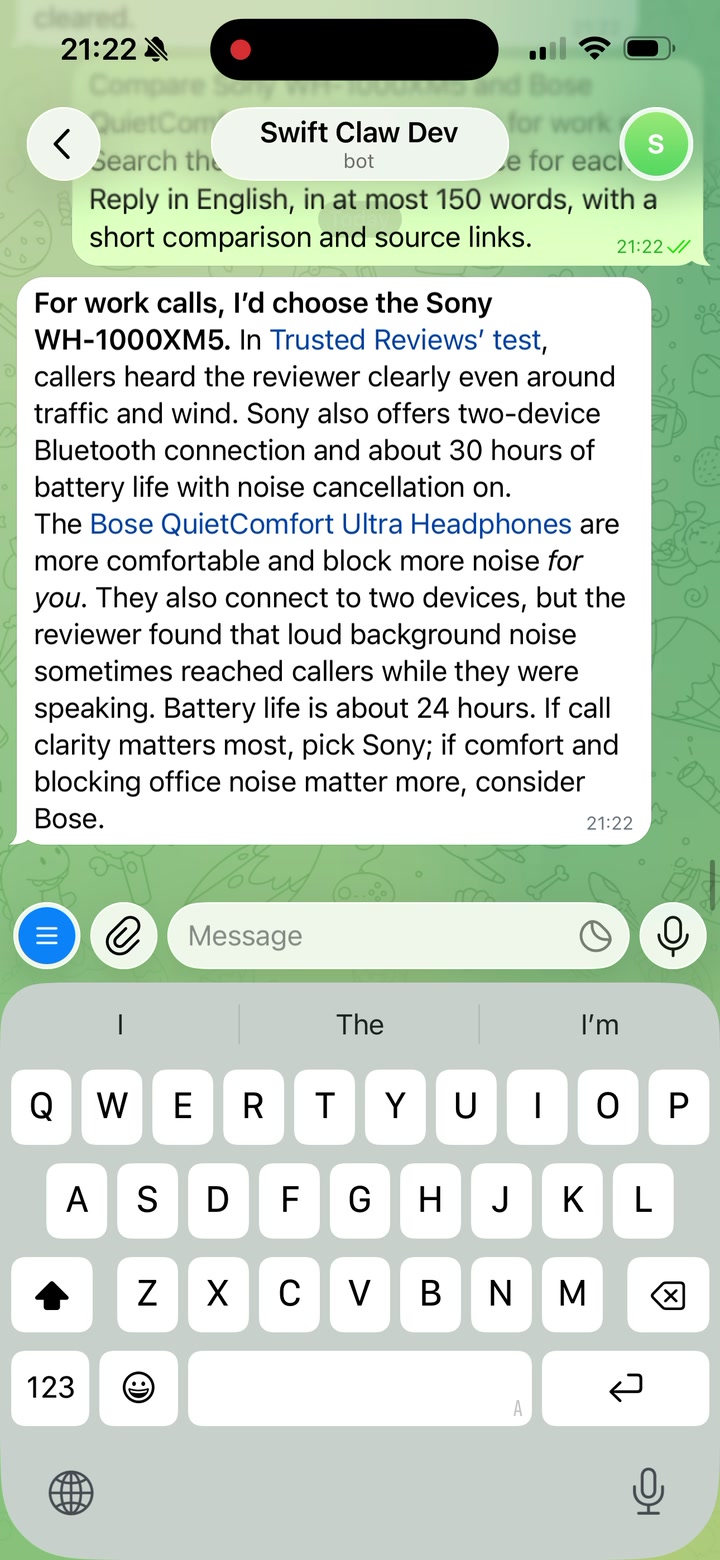
Leave and reopen the chat to check that the answer is still there.
Add animated action icons
Our headphones example uses text labels. Telegram also recommends the AIActions custom emoji set for indicating activities such as searching and thinking. Thinking blocks accept rich text, including custom emoji; see InputRichBlockThinking.
Here, a search for recent Sony WH-1000XM5 reviews moves between Searching and Thinking, with an animated icon beside each label:
To add an icon, call getStickerSet with name: "AIActions". Choose a sticker and use its custom_emoji_id in the <tg-emoji> element, with the sticker’s emoji as fallback text:
<tg-thinking>
  <tg-emoji emoji-id="CUSTOM_EMOJI_ID">🔎</tg-emoji> Searching for reviews...
</tg-thinking>
Replace CUSTOM_EMOJI_ID and 🔎 with the selected sticker’s custom_emoji_id and emoji, then use this markup as rich_message.html in the draft request. If the bot cannot send custom emoji, keep the text-only status.
Keep the text alongside the animation so the action remains understandable without interpreting the icon. Adding the emoji changes how we present a status; our tool-event handling can stay the same.
Make the Stop button cancel the task
Now let’s interrupt a longer request. In this recording, we ask the bot to research five wireless headphones, then press Stop while it is working:
After the tap, the preview disappears and the bot confirms “Stopped.” That confirmation comes from the bot; the Stop control belongs to Telegram.
The first draft request already includes can_stop: true. Pressing Telegram’s native Stop button sends a stopped_message_generation update. If our bot filters allowed_updates, we need to include it. The event identifies the chat, optional thread, and draft to stop. See the Bot API reference.
Let’s use those fields to find the task behind the preview, then stop its updates and request cancellation:
on stopped_message_generation:
    find the active run for the event's chat, thread, and draft_id
    if no matching run exists, return
    close its preview writer so no further updates can be sent
    request cancellation of the agent and its running tools
Matching the draft matters. A delayed Stop for an earlier request must not cancel a new request in the same chat. Closing the preview writer also prevents a late tool result from bringing the stopped preview back.
Telegram supplies the button and event; our application handles cancellation. Some tools may take time to stop, and cancellation cannot undo an action that has already completed.
After pressing Stop, start another request. The previous run should no longer update the preview or overwrite the new task’s progress.
Check the message input, too
An active draft can affect the message input. If the user cannot send a message while the draft is active, they cannot use /stop to cancel the task either.
OpenClaw issue #86195 reports that Telegram Android 12.7.3 replaced Send with a loading control during sendMessageDraft. The user couldn’t send a correction or /stop until the draft ended. OpenClaw later moved its previews to rich messages plus edits. The report concerns a particular client and draft method, so it isn’t a claim about all Telegram clients today.
When trying this UI on the clients we support, check both interactions: stopping a task and sending a follow-up while it runs. Native Stop provides cancellation; it doesn’t guarantee that the composer will accept a steering message during an active draft.
The recordings use swift-claw, whose native Stop implementation provides a working reference.
Thanks for reading!